Donation Statements
Donation Statements show a giver's contributions in a given time period. Their giving totals can be broken down by time period, giving accounts, tax deductibility, and show pledge fulfillment progress.
Access Donation Statements
To access from the Button Bar, go to Reports/Export > Donation Statement

Step 1 - Select Who Should Receive a Statement
Queries are a search in which you define a set of criteria that people in your database must meet in order to be included in the list of donation statements. This tab can filter based on information in People records and can be combined with giving and pledging history from Donations.
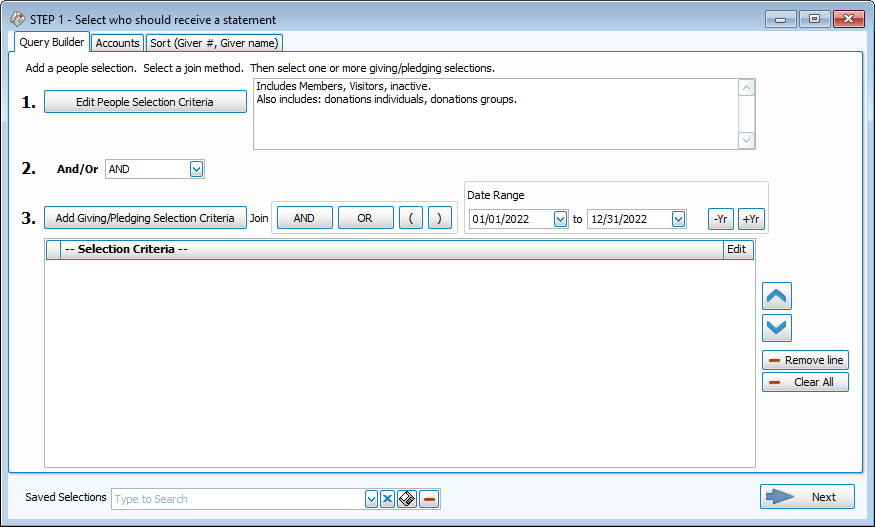
In order to generate a statement for someone, they must meet the criteria in Step 1 and have Receives Statement checked in Manage Givers. The Pledge/Giving Analysis report can produce a report of everyone who has recent giving but does not have Receives Statement checked.
Edit People Selection Criteria
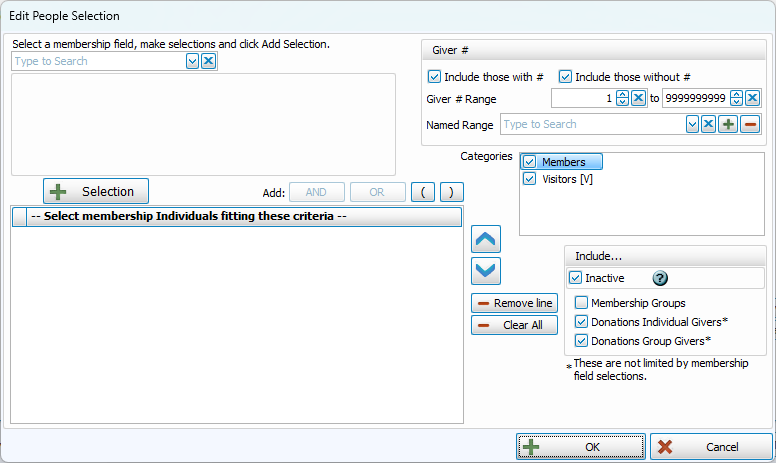
This area allows you to use criteria entered into People records in Membership.
Select Membership Field

-
This drop down allows you to filter statements using criteria in Membership, such as Status Code, Address, or Email.
Click  to add criteria to the summary in the lower left.

-
Combine multiple pieces of criteria with
 and
and  .
. -
Group conditions with

 .
. -
Remove a line of criteria with
 and clear all selections with
  .
.
Giver # Criteria
-
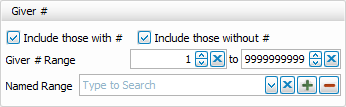
This section allows you to use Giver #s as a criteria for inclusion. You can set your own range or define custom ranges.
Family Category
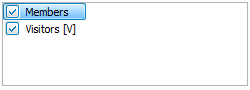
-
Categories are a part of Family Records
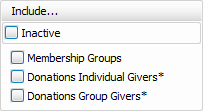
Include Inactive, Groups, and Donations Records

-
The Include... area allows you to add People records that have been marked inactive. These records are in addition to the criteria added in the left of the screen.
-
Include Membership Groups to list them along with individuals.
-
Include Donations Individuals and Donations Groups, though as fields in Donations are limited, this will add all Donations records regardless of the criteria on the left of the screen. Giving/Pledging Criteria will still apply.
Giving/Pledging Selection Criteria
-
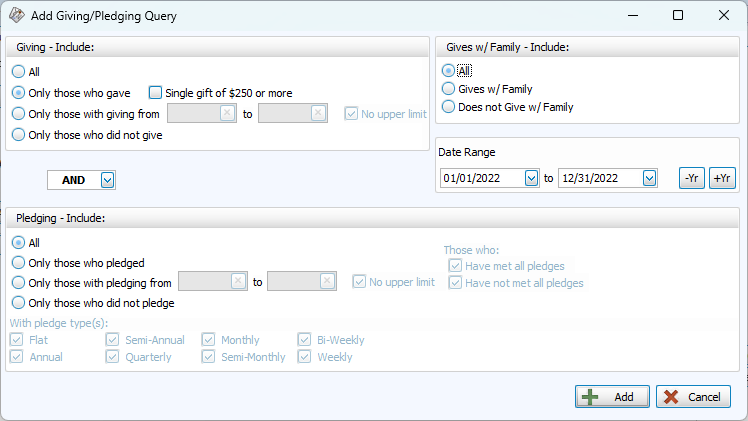
This area is used to generate a list of people based on their giving and/or pledging history within the indicated date range.
-
Use the Rec. Statement and Gives w/ Family boxes in the upper right allow you to filter based on these check boxes in Manage Givers.
Accounts Tab
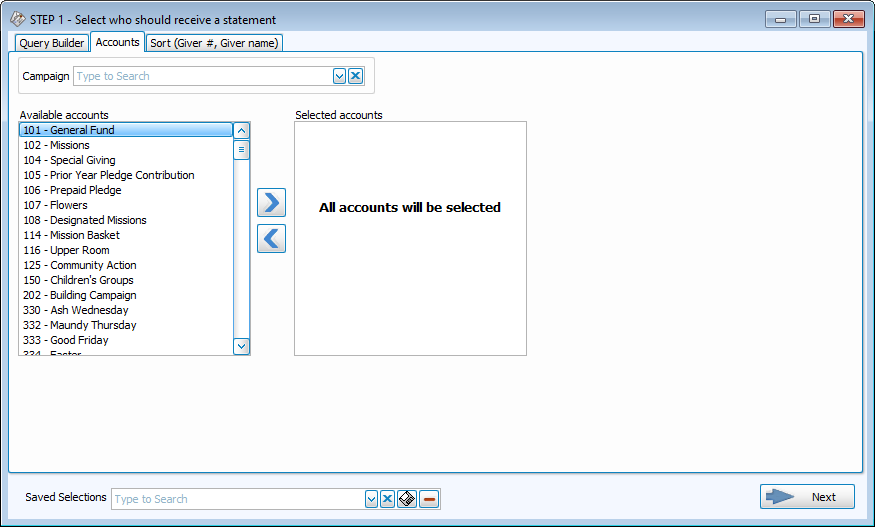
- Select participants of a specific campaign with the drop down at the top of the window.
-
Move columns you want to include to the right, and columns you want to exclude to the left.
-
Use the
 and
and  or double click to move a column to the opposite side.
 -
To select multiple columns at once
-
Click + CTRL - Selects multiple lines in any order
-
Click + SHIFT - Selects a range of lines in row
-
Sort Tab
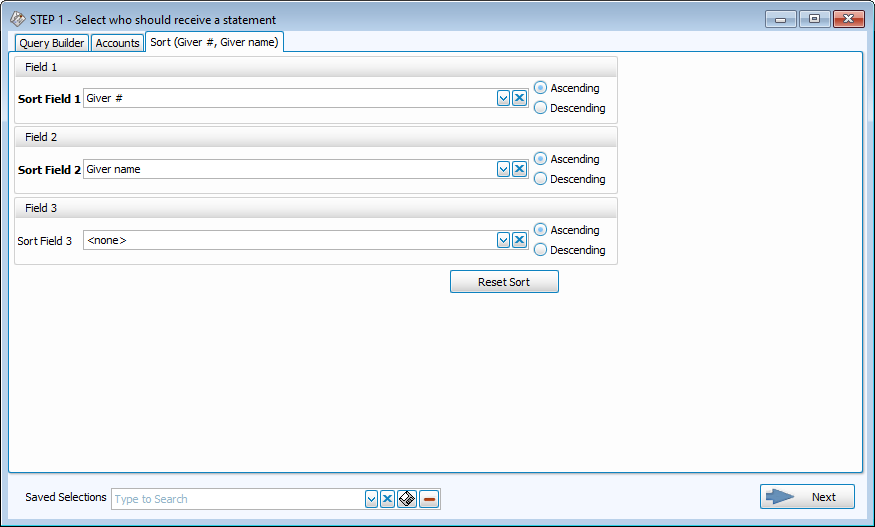
Sort fields allow you to order information. The first takes priority, when those are all the same, the program will sort within that section by the selection in the second, and then the third.
-
Sort in Ascending (A-Z, 0-9) or Descending (Z-A, 9-0) order.
-
Click
 to restore defaults.
 Common Criteria Sets for Donation Statements
These are examples of the Donation Statement Report Summary detailing the criteria entered on Step 1.
-
Default Statement Criteria
For the date range 01/01/2022 to 12/31/2022 - only those who gave and all regardless of pledging
Accounts selected: All accounts
Includes Members, Visitors, inactive.
Also includes: donations individuals, donations groups.
-
Single Gift of $250+
For the date range 01/01/2022 to 12/31/2022 - only those who gave a single gift of $250 or more and all regardless of pledging
Accounts selected: All accounts
Includes Members, Visitors, inactive.
Also includes: membership groups, donations individuals, donations groups.
-
Quarterly Statement for All Pledges
For the date range 01/01/2022 to 03/31/2022 - all regardless of giving and only those who pledged for all pledge types
Accounts selected: All accounts
Includes Members, Visitors, inactive.
Also includes: membership groups, donations individuals, donations groups.
-
Unmet Pledge Progress Statement
For the date range 01/01/2022 to 12/31/2022 - all regardless of giving and only those who pledged who have not met their pledge for pledge types: Semi-Annual, Quarterly, Monthly, Semi-Monthly, Bi-Weekly, Weekly
Accounts selected: All accounts
Includes Members, Visitors, inactive.
Also includes: membership groups, donations individuals, donations groups.
-
All With Any Giving or Pledging
For the date range 01/01/2022 to 12/31/2022 - only those who gave or only those who pledged for all pledge types
Accounts selected: All accounts
Includes Members, Visitors, inactive.
Also includes: membership groups, donations individuals, donations groups.
-
All Participating in a Campaign
For the date range 01/01/2022 to 12/31/2022 - All regardless of giving and all regardless of pledging
Accounts selected: All accounts
Campaign Selected: 2022 Pledge Campaign
Includes Members, Visitors, inactive.
Also includes: membership groups, donations individuals, donations groups.
-
All Active Membership Records, Regardless of Giving/Pledging
All regardless of giving and all regardless of pledging
Accounts selected: All accounts
Includes Members, Visitors.
-
Separate Statements for Children
For the date range 01/01/2022 to 12/31/2022 -only those who gave and all regardless of pledging
Accounts selected: All accounts
Includes Members, Visitors
Criteria: Directory/Report Order = 3 (Child w/ family)
Step 2 - Select the Statement Layout
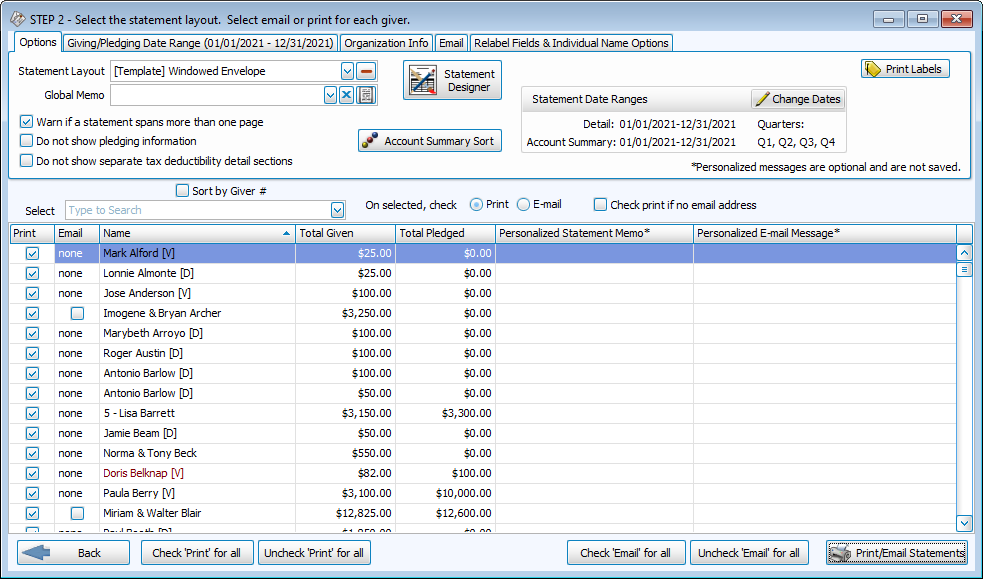
In Step 2, you'll determine what information gets included in your statement. Church Windows provides several options indicated with [Template] in the Statement Layout dropdown in the upper left. Below that is the Global Memo which allows you to add a text note to every statement.
-
Generated statements will appear in a grid in the bottom half of the screen. Search for specific statements using the Select drop down. You can sort the grid by Name, Total Given, or Total Pledged. In the Personalized columns, you can elect to type a message that will only appear on that the statement or email for that Person or Giving Unit.
-
Click
 to generate statements that are checked in the Print column in a Print Preview. Statements that are checked in the Email column will prompt a confirmation message before sending.
Options

-
Statement Layout and Statement Designer - Choose an existing template from the dropdown, or click the Statement Designer to customize and a save a layout.
-
Global Memo - The Global Memo appears on every statement. Often, this space is used to say thanks, highlight accomplishments, encourage continued giving, or provide contact information for questions. Add, edit or delete messages by clicking the
 button.
 -
Warn if a statement spans more than one page - This will provide an alert with a count or list of statements that did not fit on a single page.
-
Do not show pledging information - This option removes columns and fields for pledging information without having to customize a layout in the Statement Designer.
-
Do not show separate tax deductibility detail sections - This box prevents the detail section from separating tax deductible from non-tax deductible donations. Tax deductibility totals are determined by the Statement Layout.
-
Statement Date Range - Click Change Dates to control the date ranges shown in each section of the layout. For example, you might elect to show totals for the year in the Account Summary section, but only show the current quarter in the Detail section.
Giving/Pledging Date Range

-
In Step 1, the selected date range is used as criteria for who statements are produced for. In Step 2, the selected date range determines what shows on the report, for the selected givers.
Example: You could pull statements for everyone who has had giving in the past 2 years, but only show the most recent year on the statement.
Organization Info

-
By default, the Organization Information shown on the statement will be brought in from System Information. To use an alternate set of contact information, click
 to create a new set of information,
  to edit, or
  to delete.

-
In the Email Setting drop down, you can choose a saved email address that is connected to Church Windows. To add an email address to send statements from, click the
and follow the instructions outlined in Email. -
The Global Email Message is the text that will appear within the subject line and body of the email. Global Memos from the Options tab will be included on the attached statements. Add, edit or delete messages by clicking the
button. -
Click Email Sample Donation Statement to see an example of what your message will look like.
-
Click Set Default Email for Givers to open Donations Settings which allows you to choose from Email fields in Membership as the default for statements.
-
View Sent Email Logs opens a window that lists a summary of an email batch with email address and whether they were sent or failed.
-
Include additional documents to your email with the Add Attachment button.
Relabel Fields & Individual Name Options

-
Relabel Fields included in statements on this tab if you use different terminology at your church or would like to change the default. Editable terms are Pledges, Freq., Amt/Freq., Amt. Given, Prior Giving, Over/Under, and Non-Pledged.
-
Account Summary Section - Print Campaign name instead of Account name - Check this box to list a Campaign (2023 Pledge Campaign) instead of the giving account associated with it (General Fund).
-
Name Options - For individuals, you can elect to include their Title, First Name (instead of Nickname, if indicated as Preferred Name), or Middle Name.
Name options will only apply to Individual Givers who have not been included in a Giving Unit with the Gives with Family check box. Giving Unit statements names use the Group Name or Mailing Label.